
Microsoft Multi-Factor Authentication (MFA) helps protect your district account by requiring an additional verification method when signing in. You can manage your authentication methods at any time, including adding Microsoft Authenticator, removing an old method, or changing your default verification method.
Use this link to access your account to make adjustments:
https://mysignins.microsoft.com/security-info
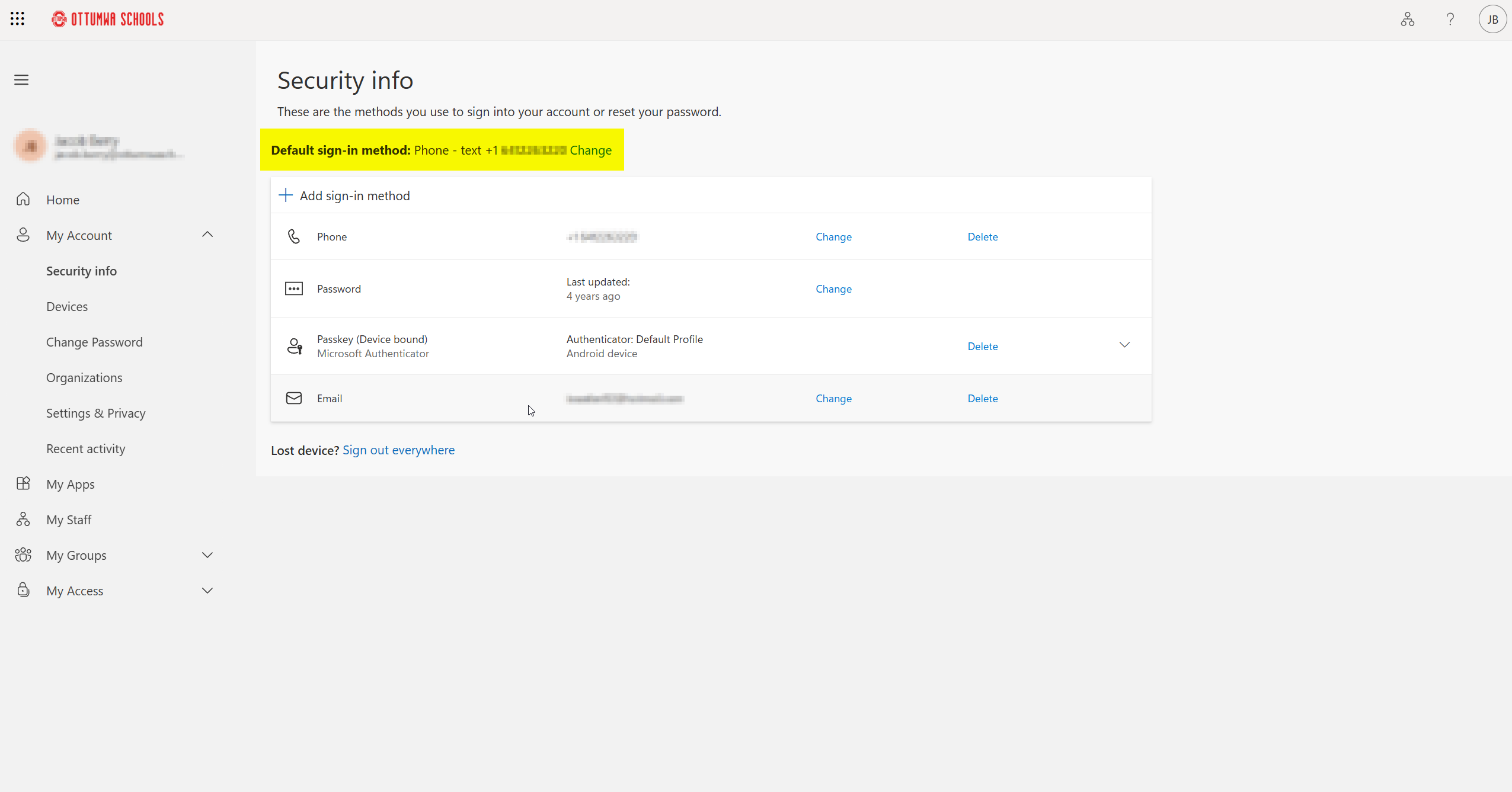
If your account has your phone number as your default method, as seen below, please continue with these steps to adjust your methods to use the Microsoft Authenticator app.
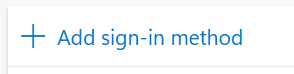
How to add a new sign-in method:
Select
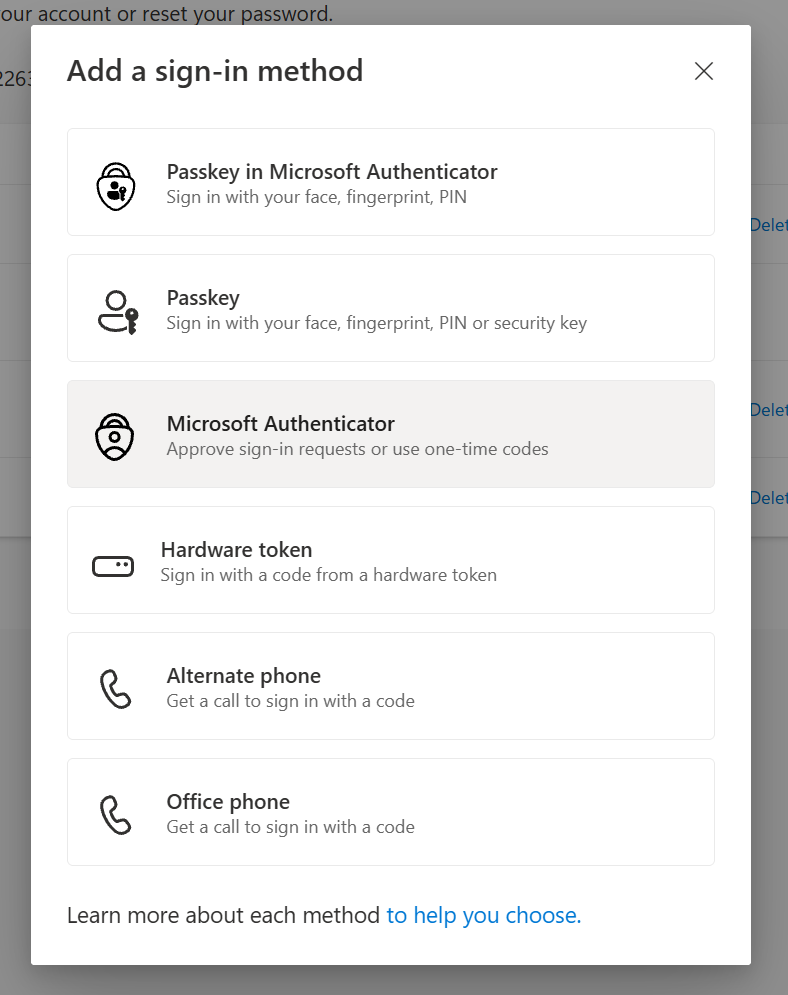
Choose Microsoft Authenticator from the dropdown and select Add.
At this time, you will need to install the Microsoft Authenticator App on to your device. If you already have Authenticator installed on your phone, select Next to display a QR code.
Open Authenticator on your phone and select the plus icon
 and select Add account.
Select Work or school account then tap Scan a QR Code.
Your account should automatically be added and your method is added to your account.
How to make the Authenticator App the default method:
1. Select "Change" in the Default sign-in method section.

2. From the drop down list, select "App based authentication - notification". Then click "Confirm"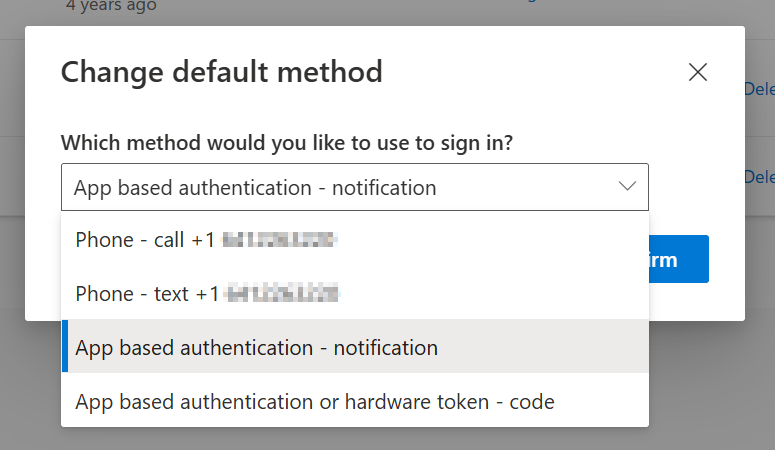
3. Your Default sign-in method should now reflect this new method in your account.

Upcoming Account Security Adjustments:
Authenticator campaign
When you're targeted for an Authenticator registration campaign, you experience the following flow:
You need to complete MFA.
If you're enabled for Authenticator push notifications and it isn't set up, you're prompted to set up Authenticator to improve your sign-in experience.
Other security features, such as passwordless sign-in, self-service password reset, or security defaults, might also prompt you to set up an authentication method.
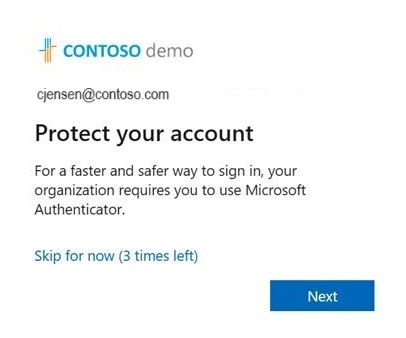
Select Next and step through Authenticator setup.