
Instructions to adjust the schedules and bells for you building.
Step 1: Access the Algo
- Check the email you received for the link to access the device and your password.
I have noticed that it doesn't always let you sign in the first time you type in your password. Change the drop down back to Scheduler and try again.
Step 2: Navigate to Groups
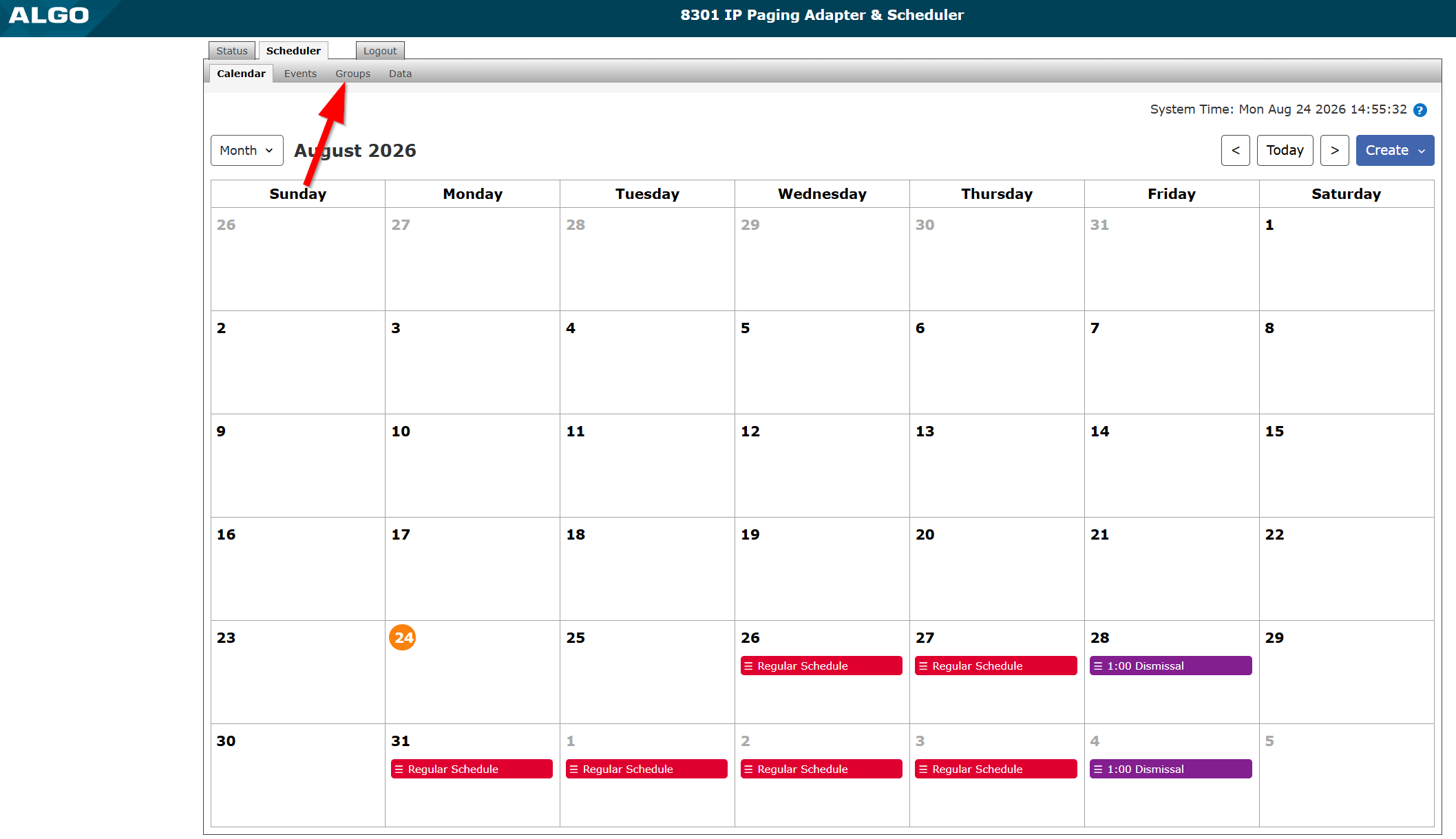
- Your landing page will be the "Calendar" view. To adjust your schedules, click the "Groups" tab.
Step 3: Adjust your Groups as needed
- Each of the Groups are essentially your different Schedules that you build. You can create a new group, edit or delete one you already created, and you can duplicate Groups.
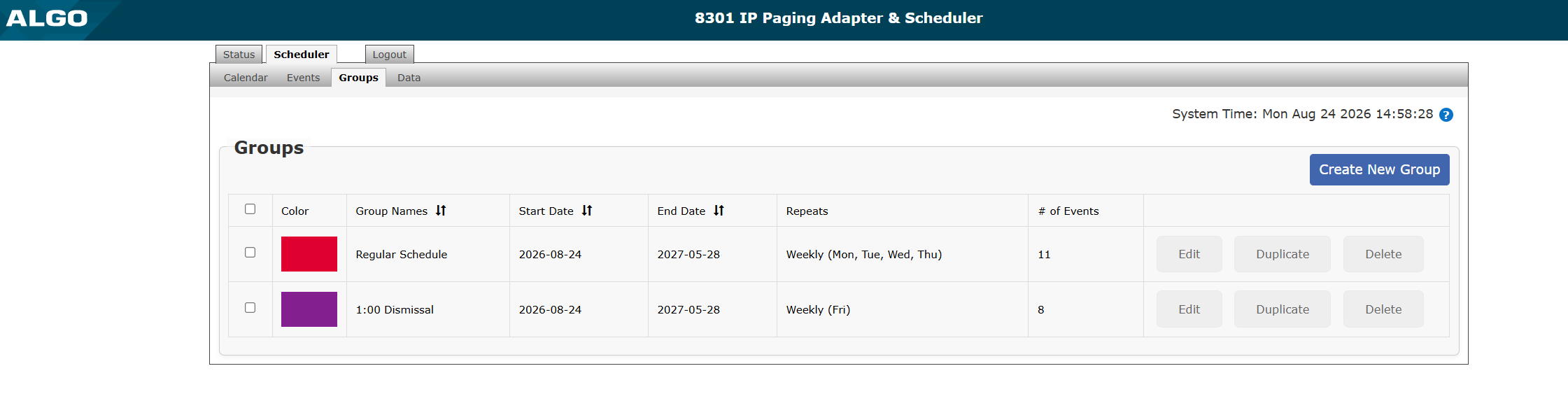
The upper settings:
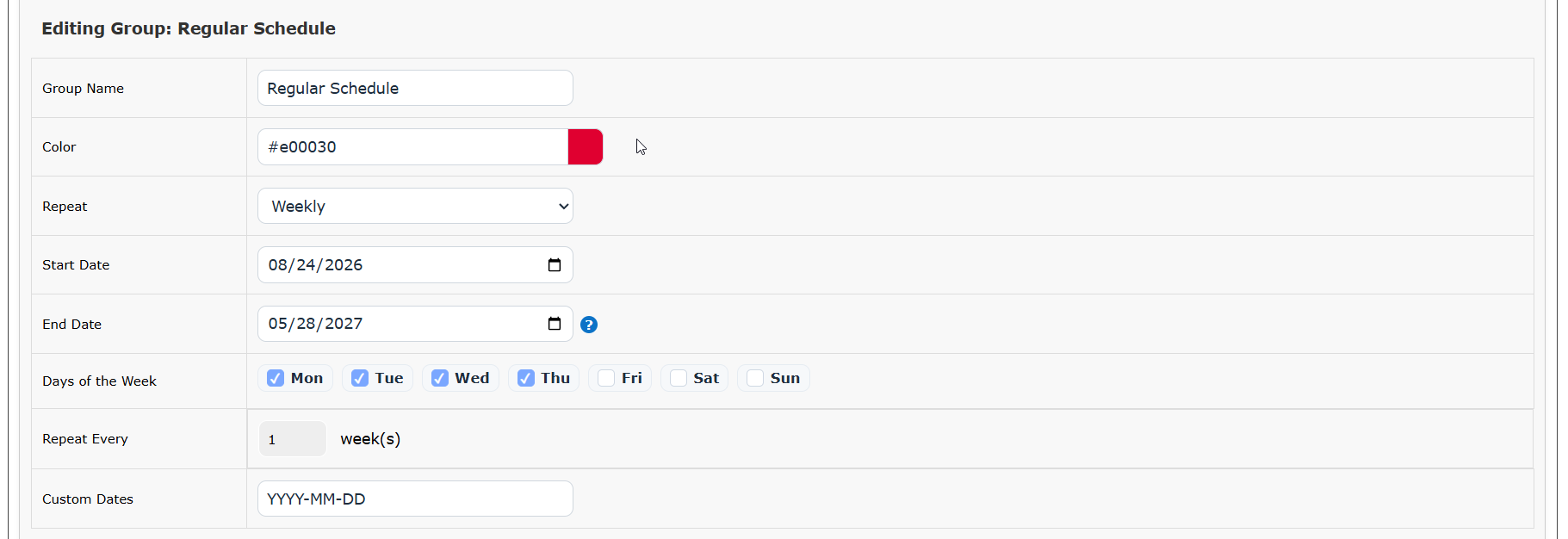
- Group name = the name of your schedule
- Color = the color you are using to differentiate the groups
- Repeat = if you want the Group to repeat or not (More details on this later)
- Start Date = Beginning date for the "Repeat" section
- End Date = Final date for the "Repeat" section
- Days of the Week = which days will repeat for the "Repeat" section
- Repeat Every = how often you want the schedule to "Repeat" based on weeks
- Custom Dates = If you do not use the "Repeat" setting, you would set the dates for the Group here.
The lower area:
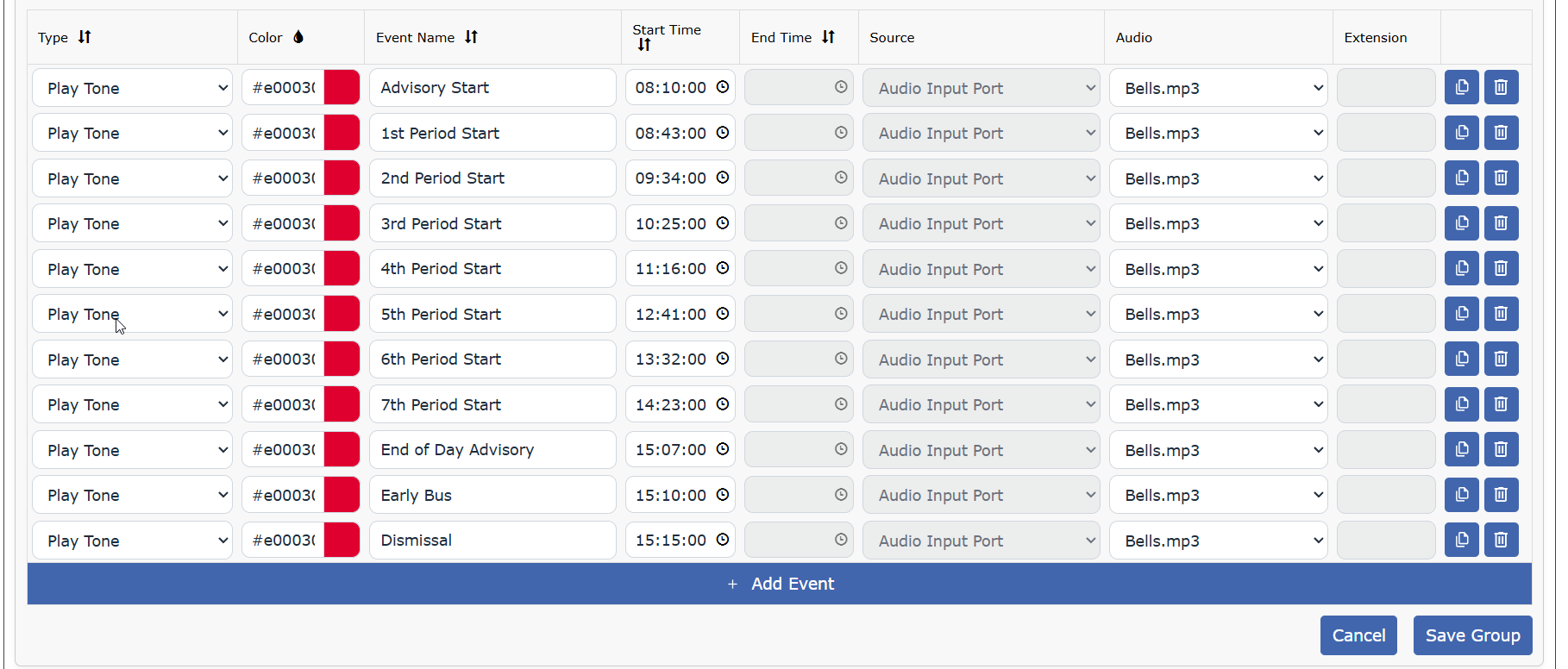
- Type = Leave this as "Play Tone" to play a sound
- Color = You can color code specific Events as needed
- Event Name = What you want to name that event
- Start Time = When the sound should play (needs to be in military time)
- End Time = This should be greyed out
- Source = This should be greyed out
- Audio = Which sound you want to play (Bells.mp3 is the district created Bells)
- Add Event = Adding a new line to create a new event
Step 4: Adjust your Calendar
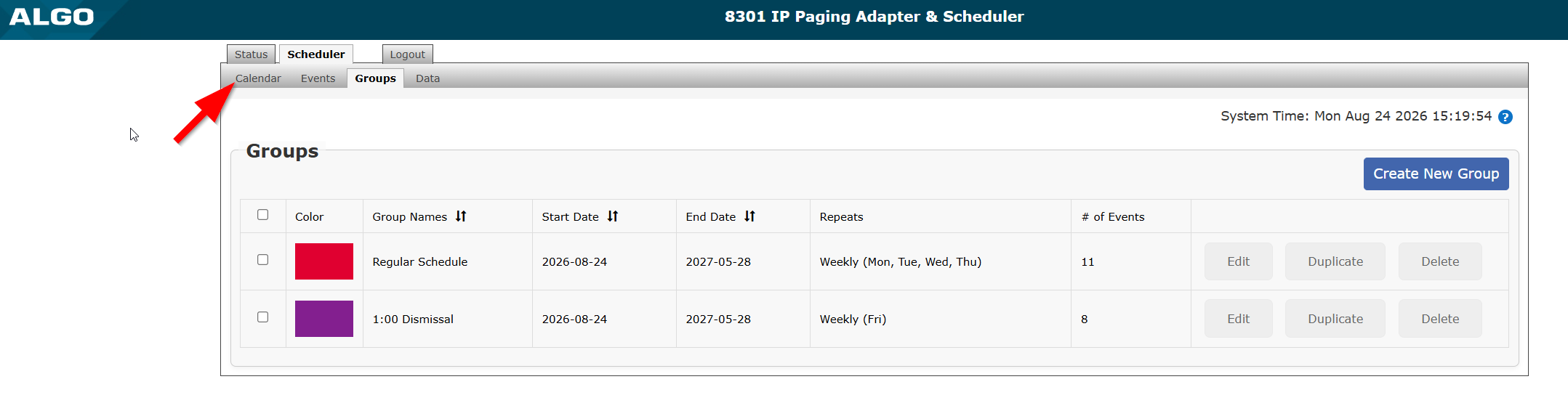
- Click the "Calendar" tab
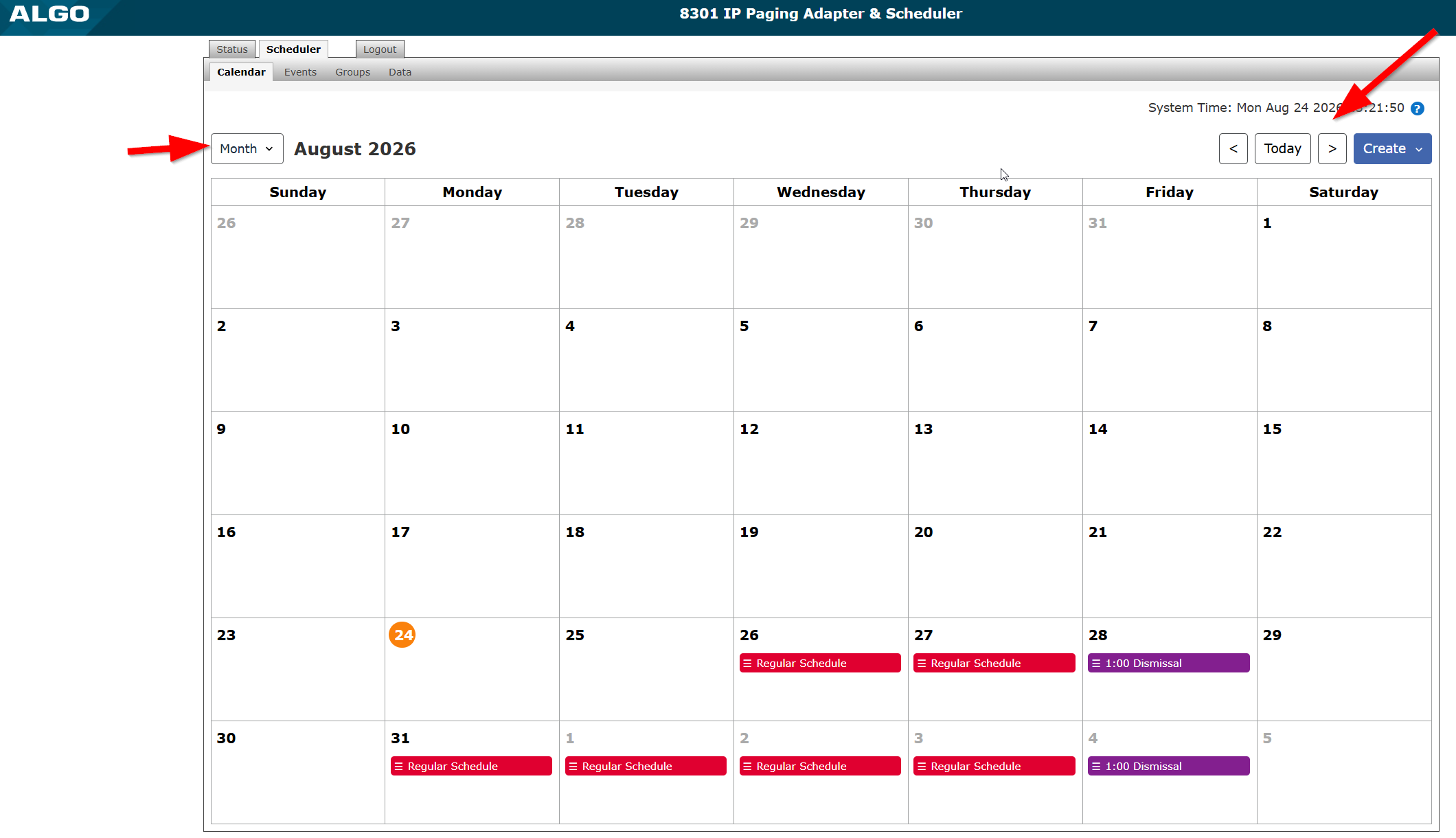
- You can change your view in the upper left and change the month in the upper right
- Each day will show the schedule for that particular day (if you color code your Groups, that can help you identify Groups as well)
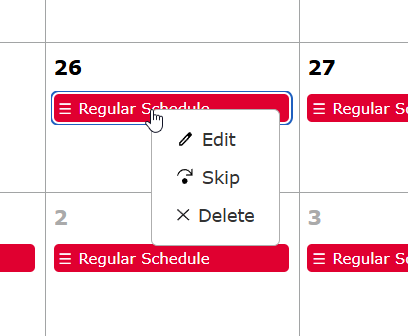
- When you click on a Group, you get three options:
- Edit = You can edit the Group directly, which will edit ALL Groups, not just that specific day
- Skip = If you need to not have the bell ring for any particular reason, you can click this and choose which periods you would like to "skip". This only skips these events on this specific day.
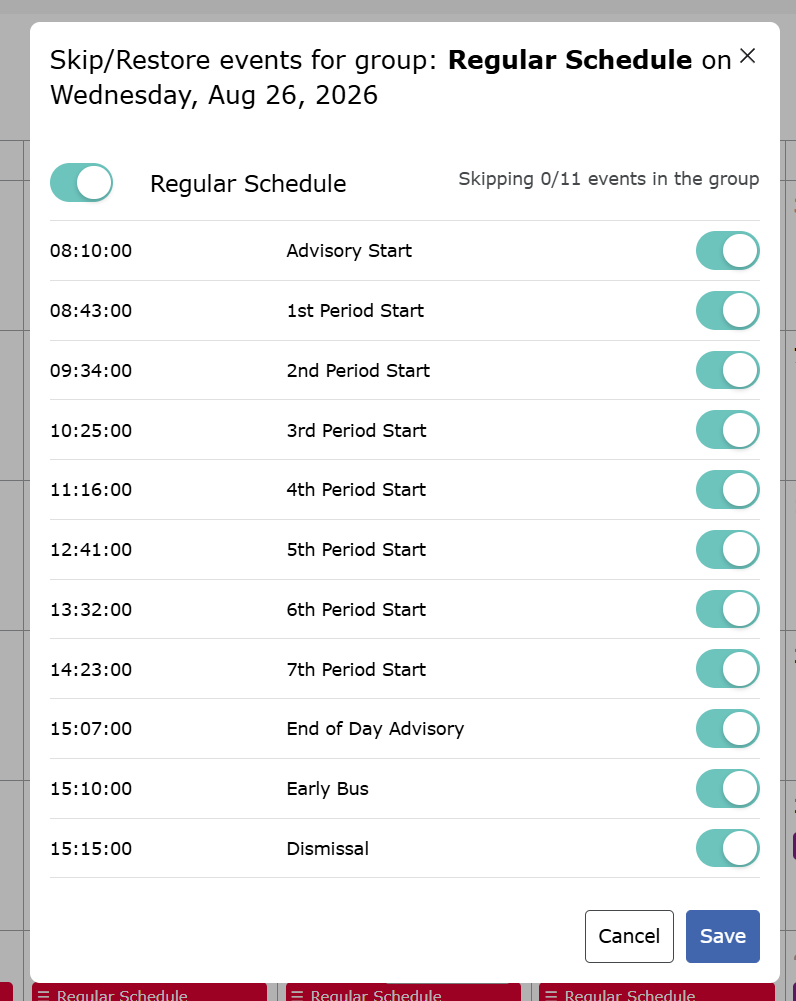
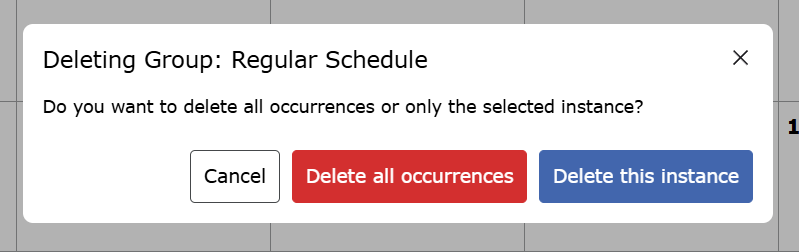
- Delete = You can delete either the entire group, or that specific date. A warning will pop up, please be careful! For example, if there is no school on a specific date, you can click that Group, and "Delete this instance" to remove the schedule from that day.
Please note: If you want sounds/music added, Jacob will have to upload those to the device, and then they will be available for you to choose in the "Edit" section of the Group.

Please email these to jacob.berry@ottumwaschools.com, and please have then in .mp3 or .wav format.