
Go to print.ottumwaschools.com.
Sign in using the credentials provided by the OCSD Tech Department.
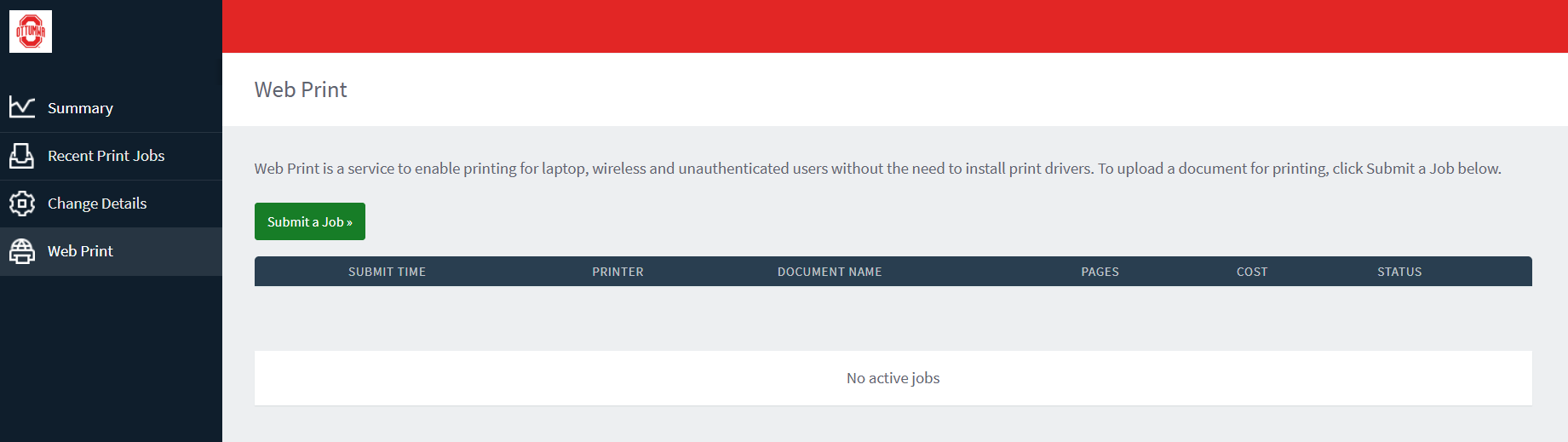
Then choose "Submit a Job"
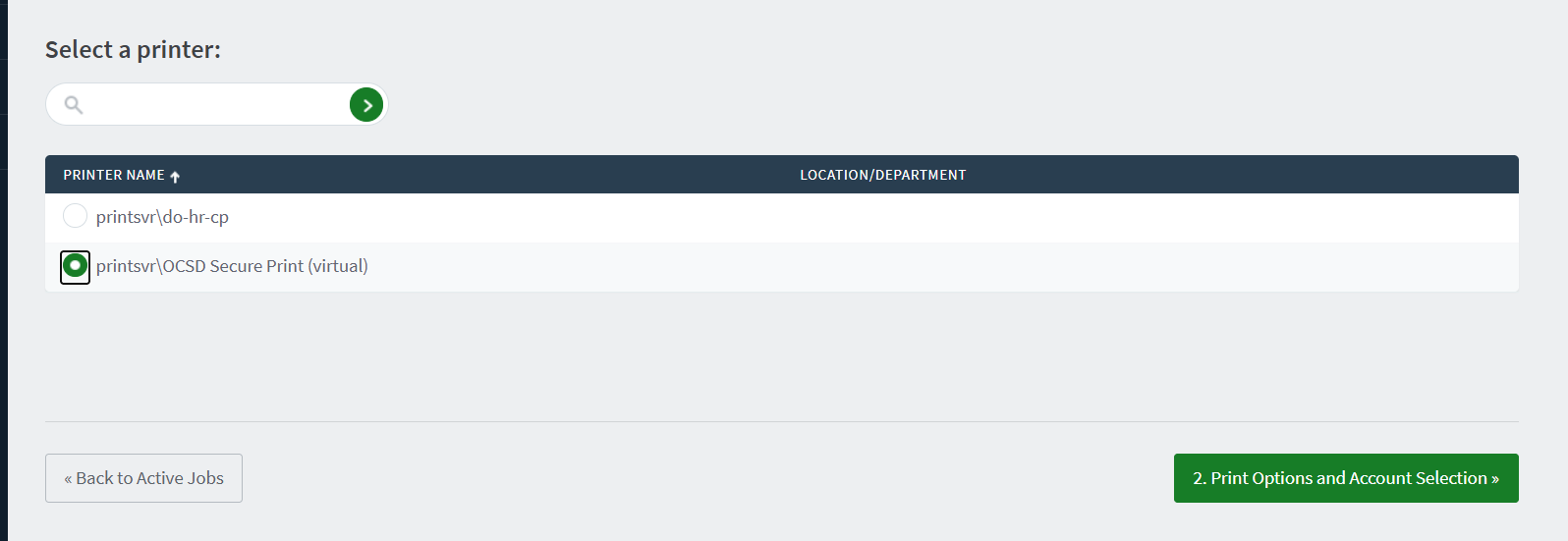
Then choose "printsvr\OCSD Secure Print" and then the green button to continue.
Choose the amount of copies, and then upload the document you would like printed.
Please note, the following file types are allowed:
    PDF - pdf
    Picture Files - bmp, dib, gif, jfif, jif, jpe, jpeg, jpg,
        png, tif, tiff
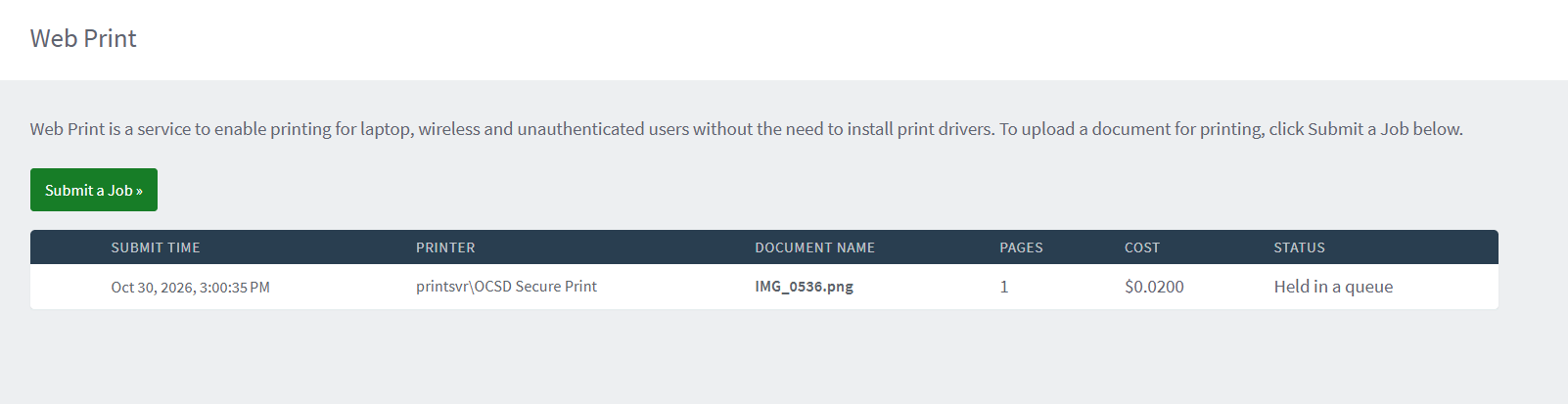
You will then be returned to the home page, and can view your pending jobs.
To Release the print job, first get your PIN to enter in to the copier to release the print job.
This is found by selecting "Summary" in the left list of menu items, and clicking "Show" under Card/ID.
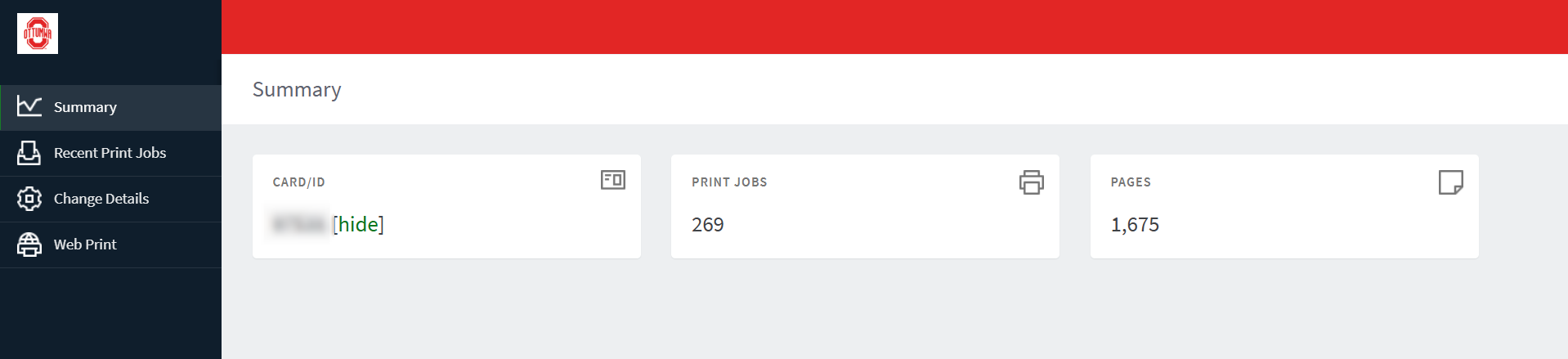
Use this PIN at any District Copier to release the print job you have queued.